
Back to help overview
Organisation & Einstellungen
Set up payments
Orbance Payments, manual methods (invoice, prepayment), and service fee under Settings → Payments.
Under Settings → Payments you set up online payments with Orbance Payments and manage manual methods such as Invoice and Prepayment.
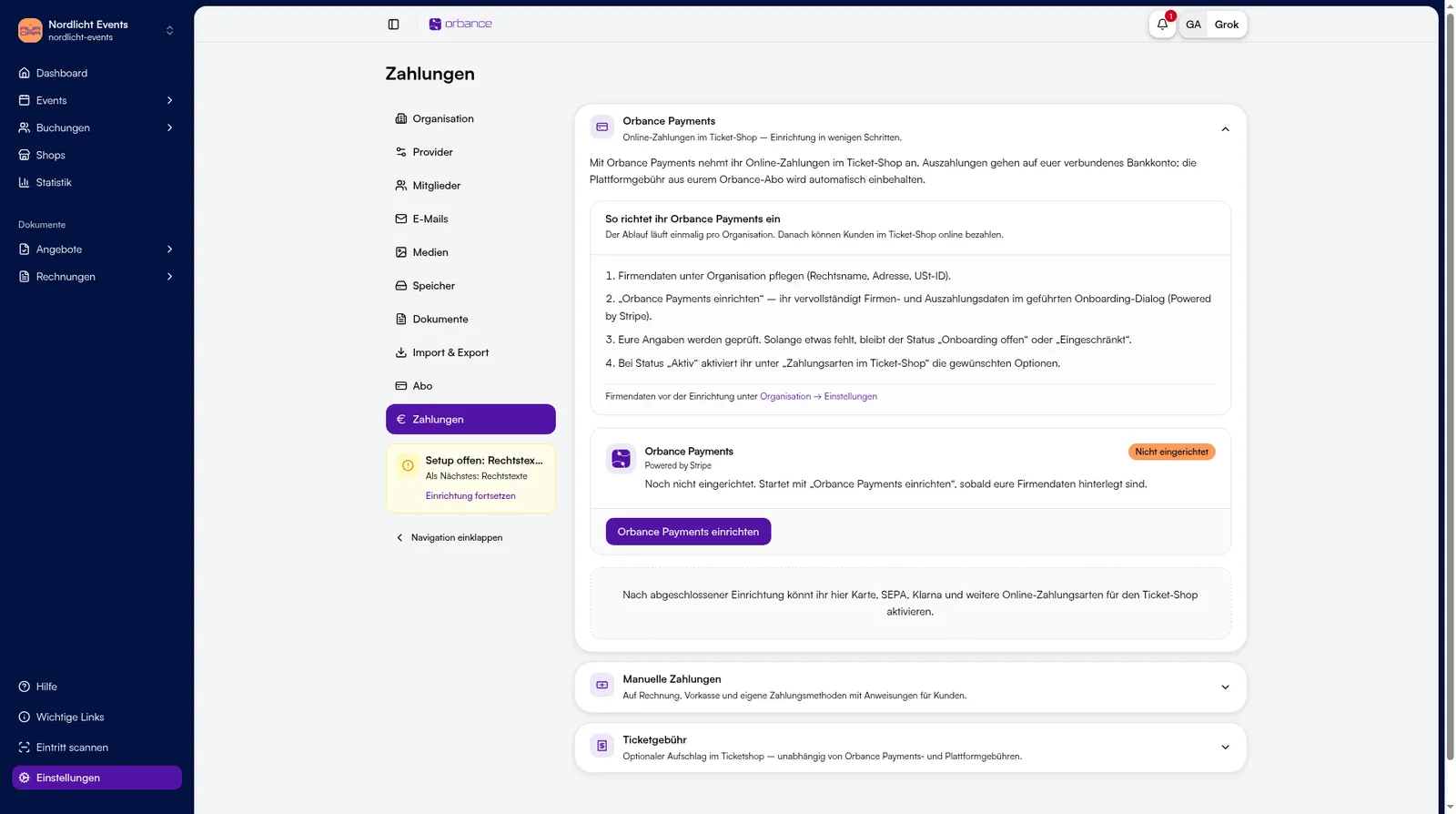
1. Set up Orbance Payments
- Open Settings → Payments.
- In Orbance Payments, click Set up Orbance Payments.
- Complete the guided onboarding dialog.
- Afterwards, available online methods appear for the ticket shop (via Manage).
While the status is Not set up, online methods are not usable in the shop yet.
2. Manual payments
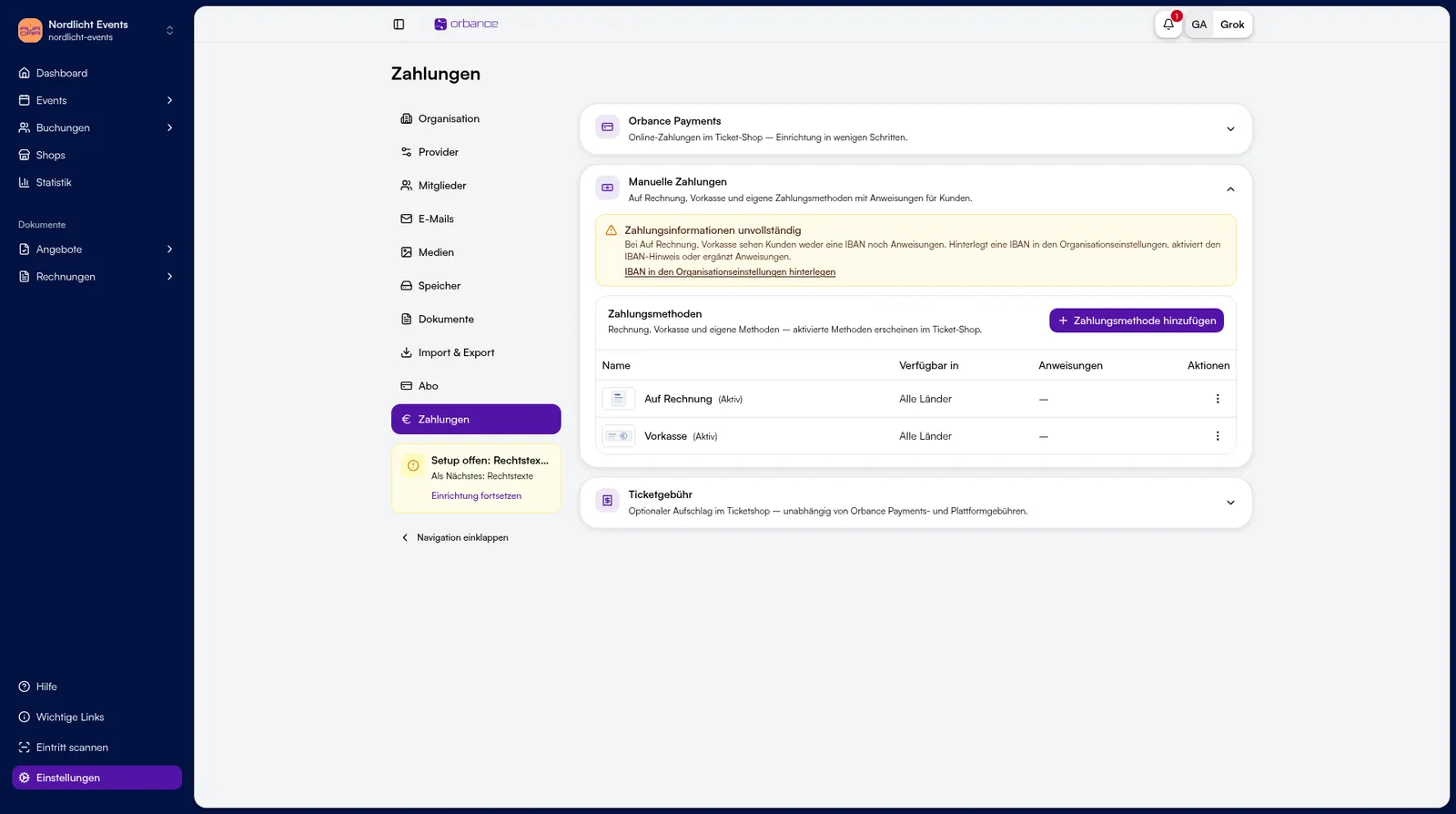
- Open Manual payments.
- Enable Invoice and Prepayment or edit their instructions.
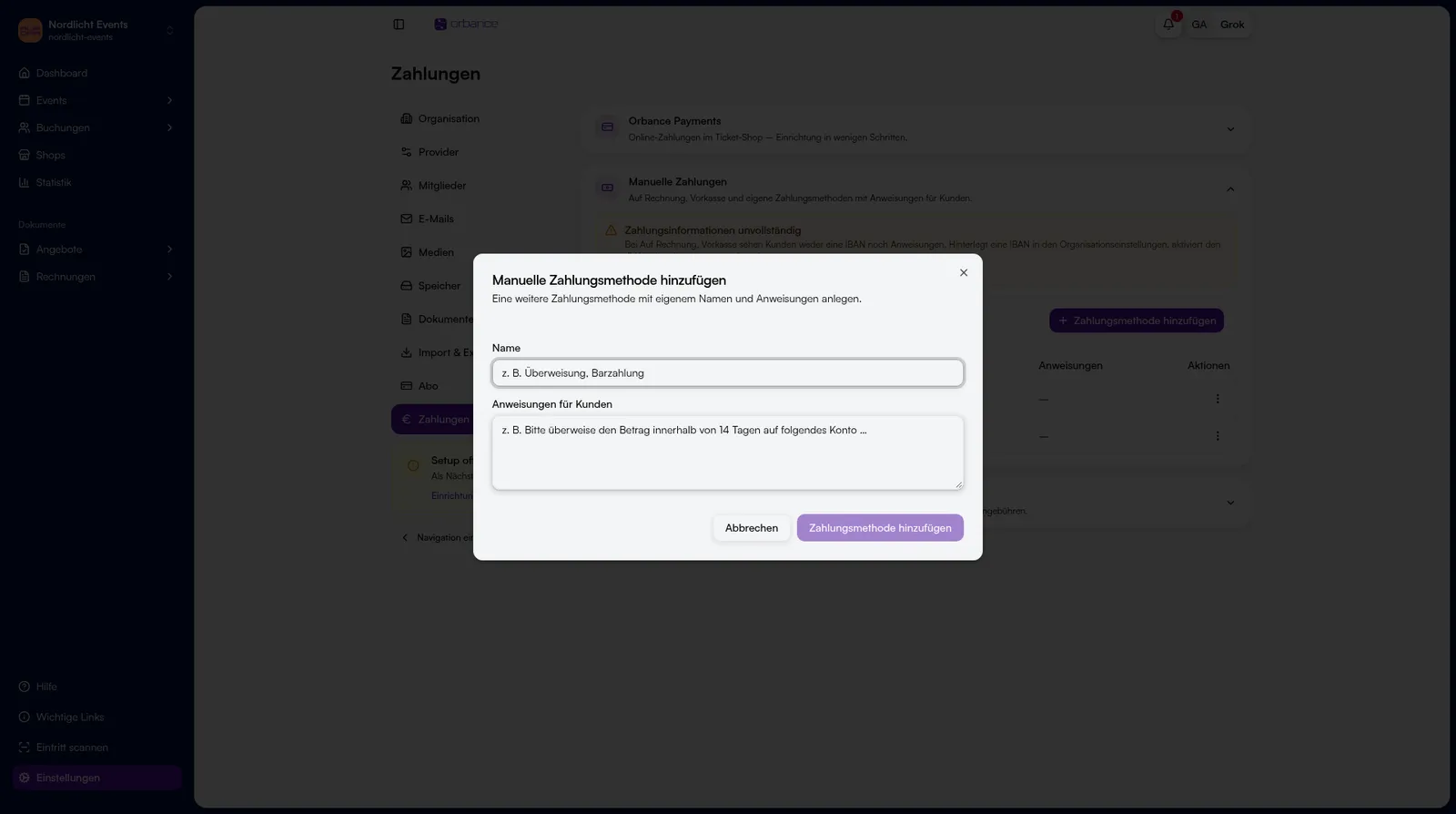
- Optionally click Add payment method for a custom manual method (dialog Add manual payment method; you can open it without saving).
3. Service fee
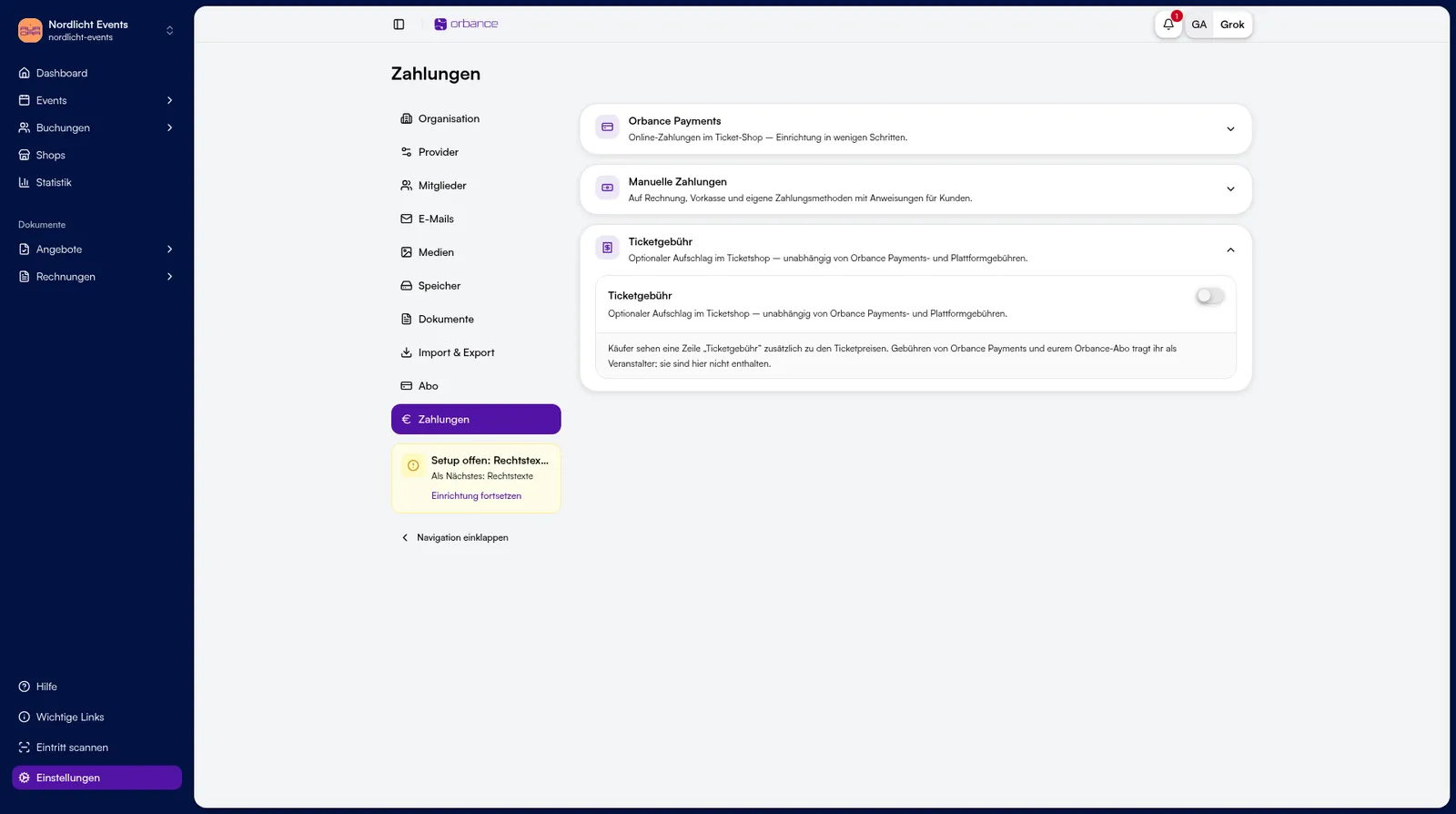
- In Service fee, optionally set a surcharge for the ticket shop.
Tips & FAQ
- PayPal: native PayPal returns as its own payment method. Orbance Payments covers cards and other online methods; do not tell customers that PayPal only runs through Orbance Payments.
- IBAN: Invoice and Prepayment need complete bank details in organization settings, or a warning appears.
- 0 €: free bookings do not get an invoice.
- Plan / agency: platform subscription and agency billing are separate (billing settings / agency program), not this page.