
Back to help overview
Events
Ticket shops
Set up the public shop per provider: theme, appearance, legal pages, and domain.
Under Shops you configure a provider’s public ticket shop: design, texts, legal pages, and domain. Create and publish bookable events in the event editor.
1. Open the shop
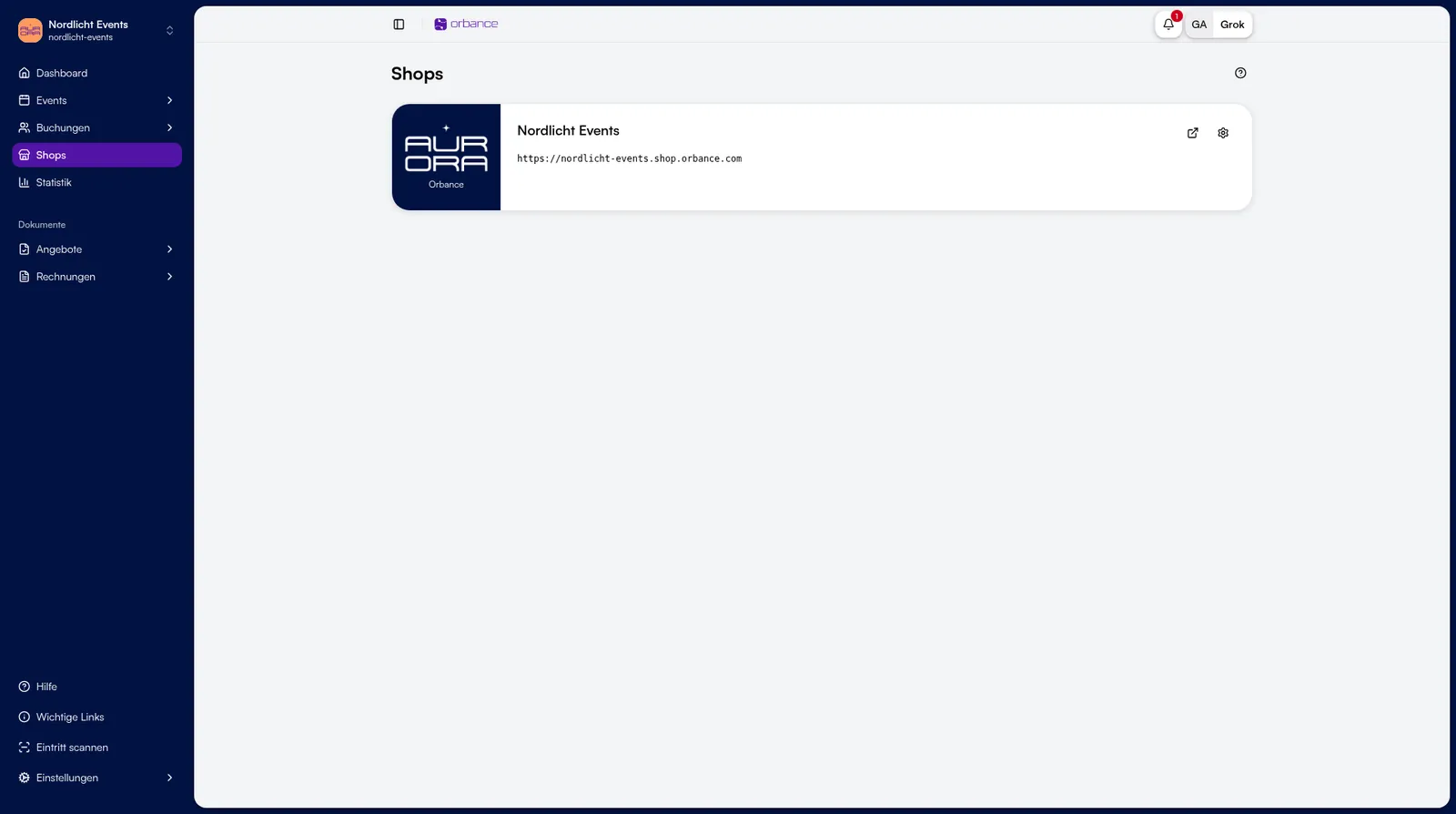
- Open Shops in the sidebar.
- Select the provider shop and open settings (gear icon).
Default URL: https://shortname.shop.orbance.com (provider short name). You can optionally connect a custom domain.
2. Shop settings
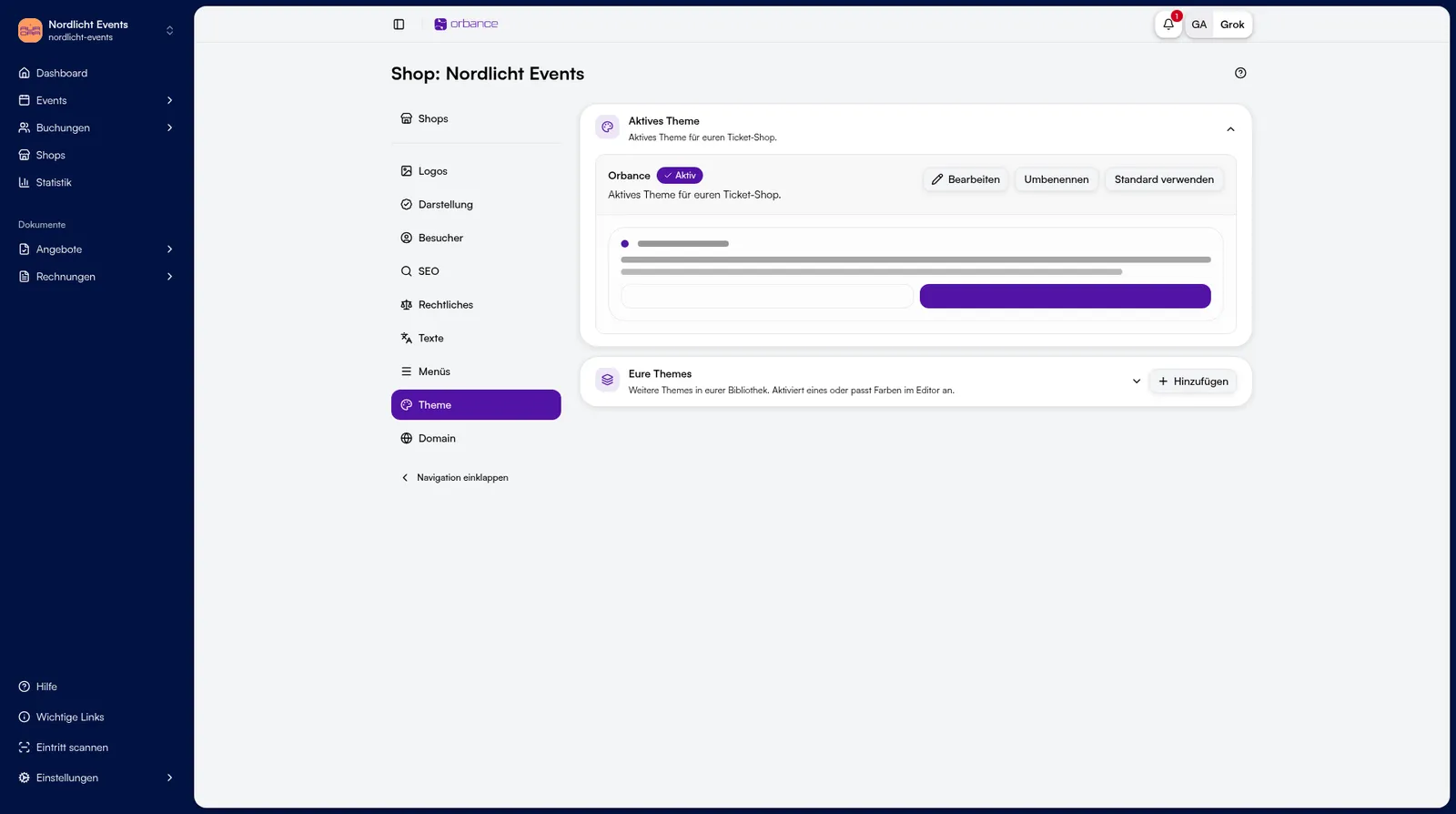
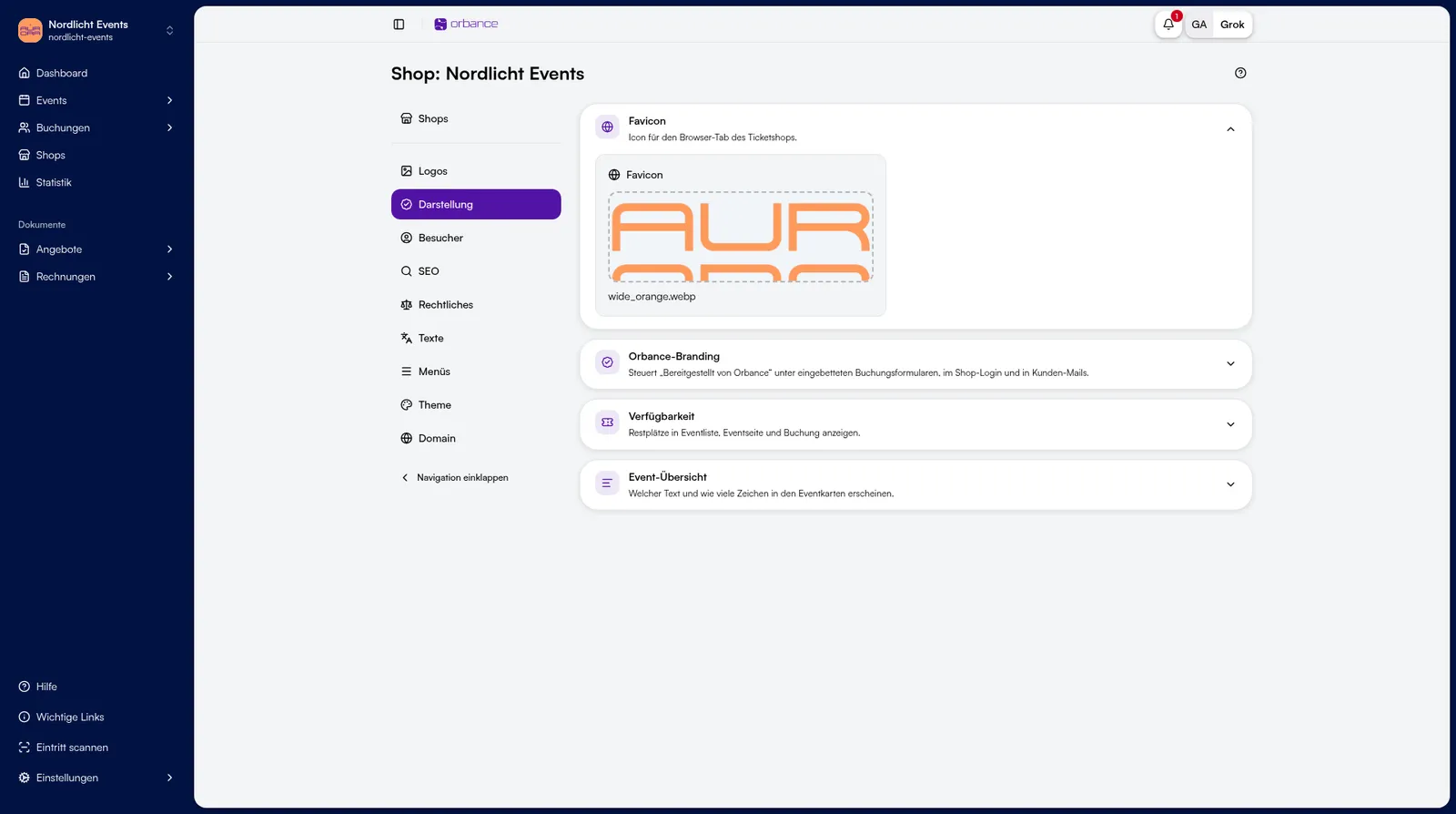
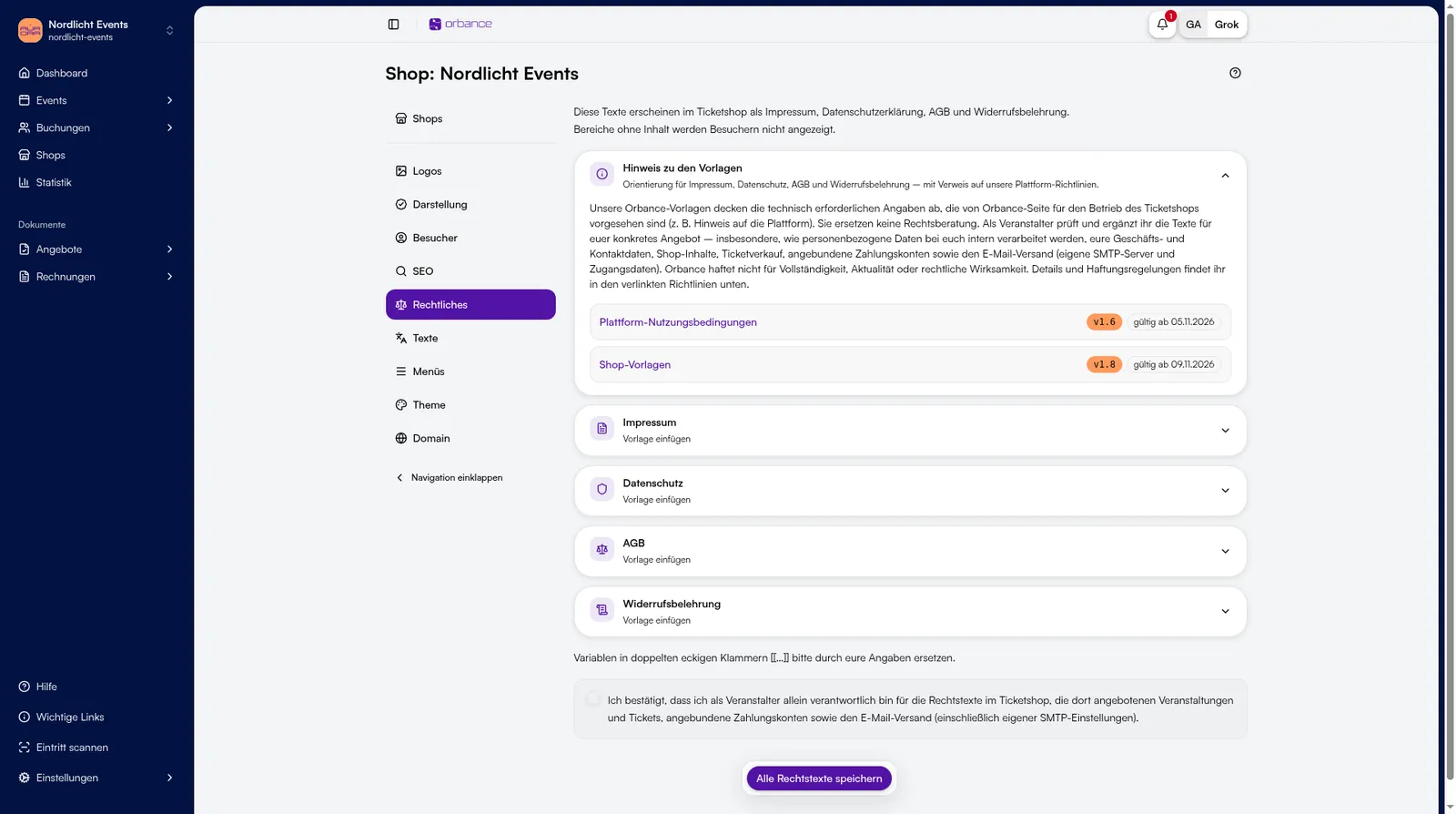
- Use the shop navigation for areas such as Appearance, Visitors, SEO, Legal, Menus, Theme, Domain.
- Theme: colors and layout.
- Appearance: favicon and display options (e.g. remaining seats).
- Legal: imprint, privacy, terms, and cancellation policy.
Texts: without Theme V2 use Texts; with Theme V2 use Languages & texts. The Logos area only appears without an active Theme V2 (otherwise logos live in the theme editor).
Tips & FAQ
- Which events appear? Published events of the provider, unless they are direct-link only.
- Event content: title, banner, pricing tiers, and form are set on the event, not in the shop.
- Filters: create event filters under Events → Event filters and assign them on the event.
- Provider: without a provider there is no shop. See Organization and providers.