
Back to help overview
Events
Tickets for attendees
E-ticket and PDF per tier, scan tickets, booking tickets, and wallet branding.
Attendees get tickets as an e-ticket (QR code), optionally as a PDF and as a wallet pass. At the door use Scan tickets.
1. Tickets per pricing tier
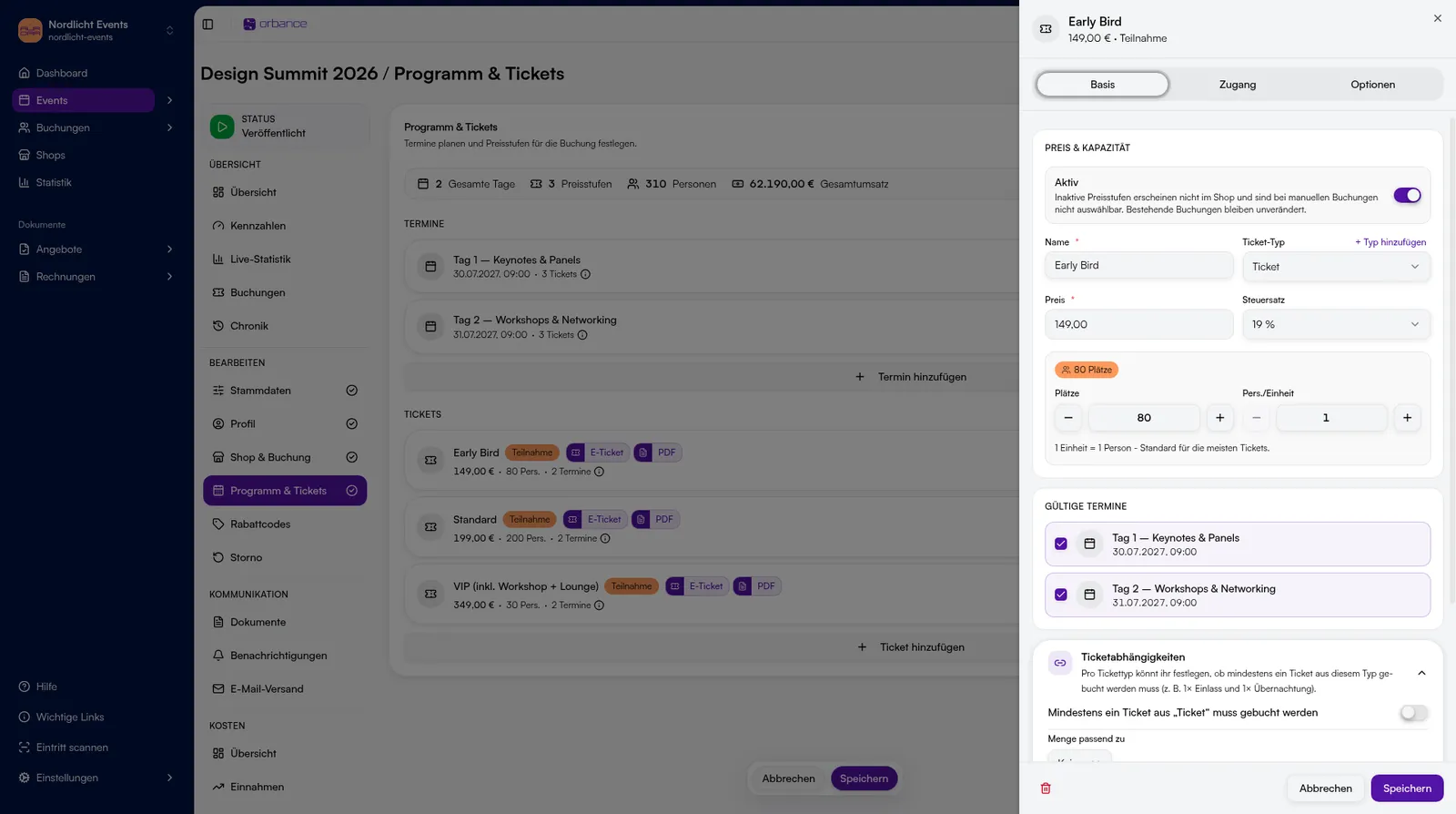
- Open the event under Edit → Program & tickets.
- Click a pricing tier to open the editor (Basics / Access / Options).
- Check name, price, and capacity. Whether E-ticket and PDF are on is shown by the badges on the tier.
- Confirm with Save.
2. Scan tickets
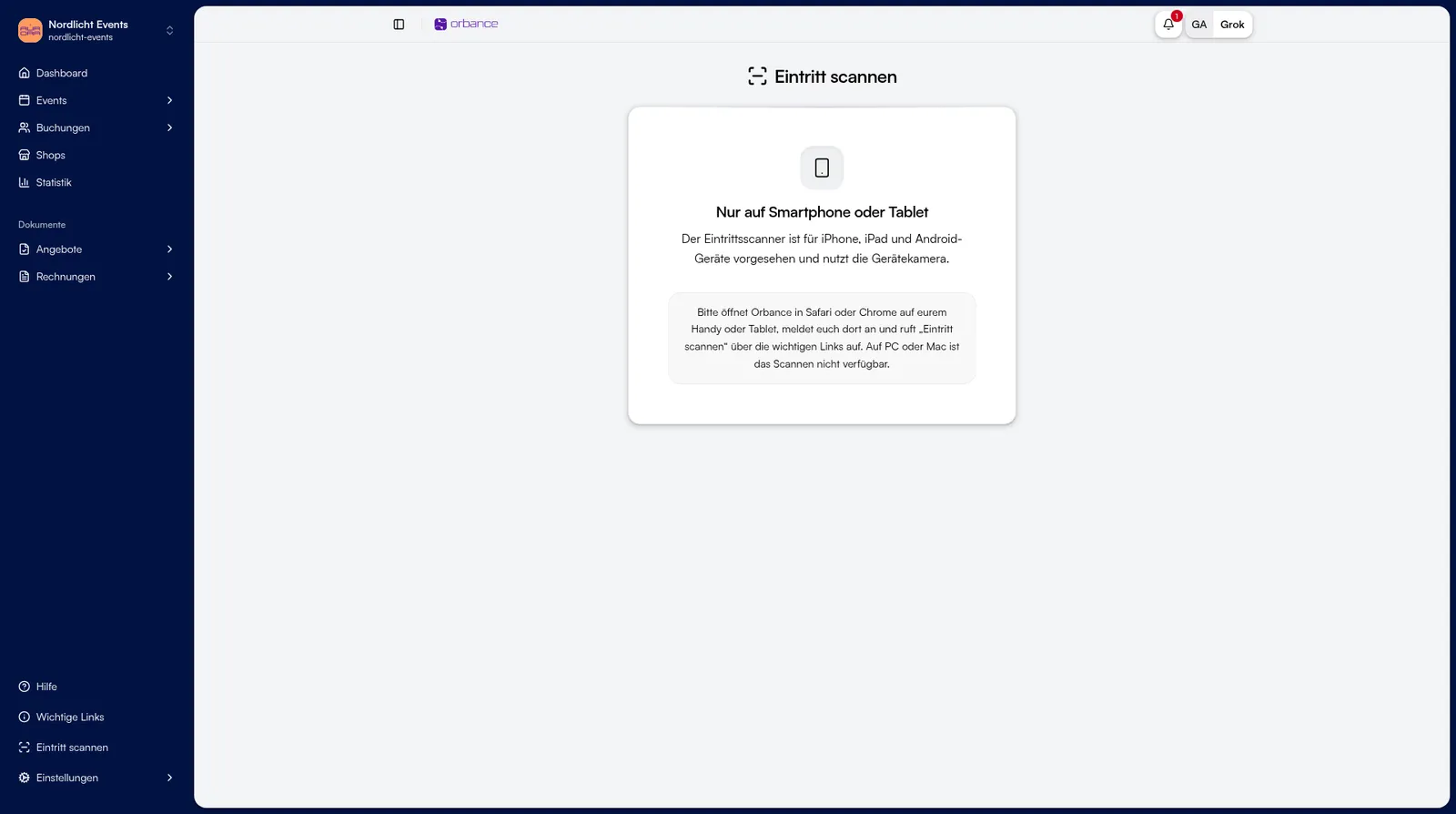
- Open Scan tickets (footer of the sidebar / Important links).
- On desktop you see Phone or tablet only. Scanning only runs on mobile with a camera.
- On a phone or tablet open the same page, pick the event, and set scan mode: Redeem, Validate only, or Mixed.
- Point the camera at the QR code.
3. Tickets on the booking
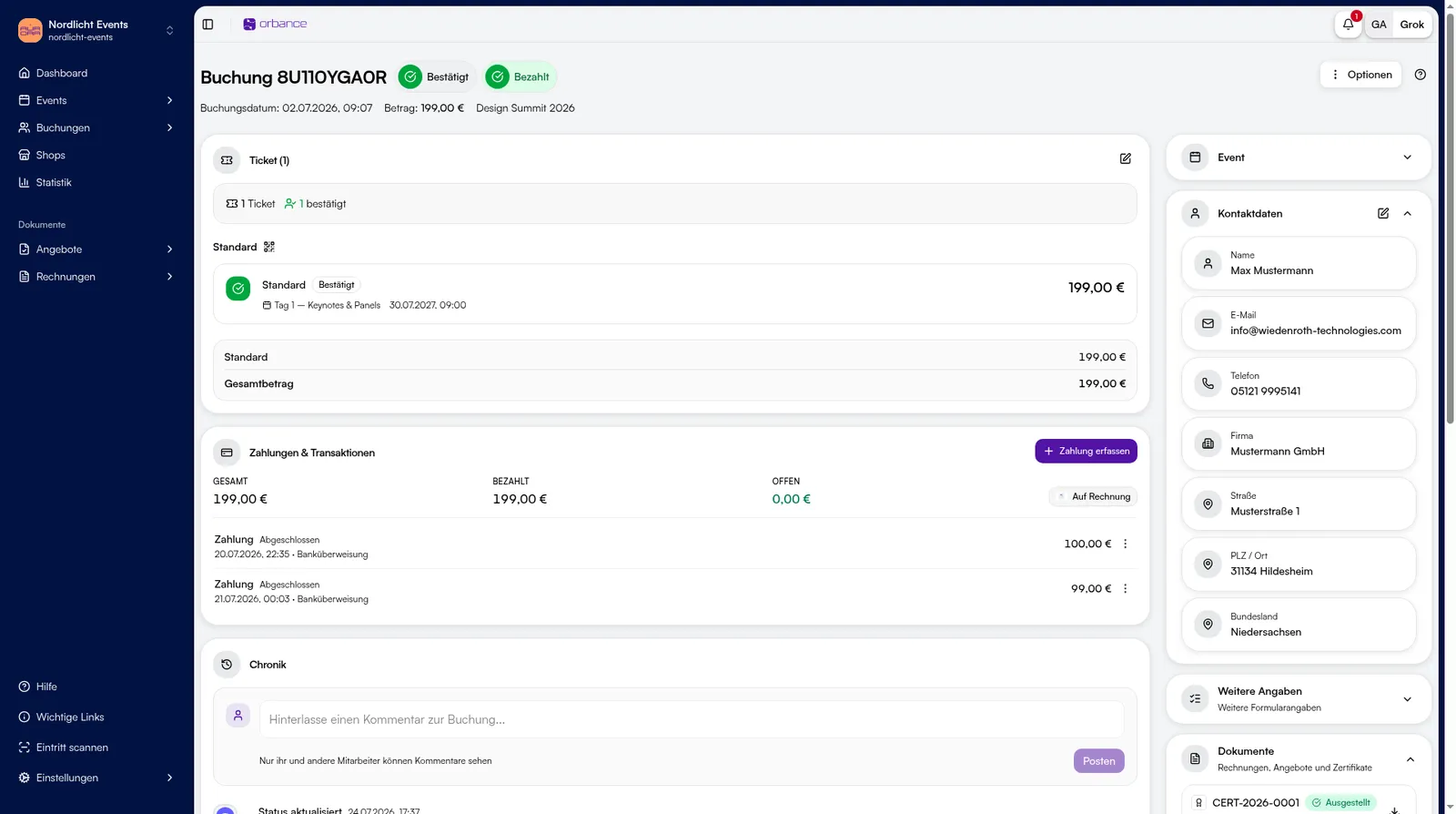
- Open the booking under Bookings.
- Check status and tier under Tickets.
- Use Options to resend tickets if needed.
4. Wallet branding
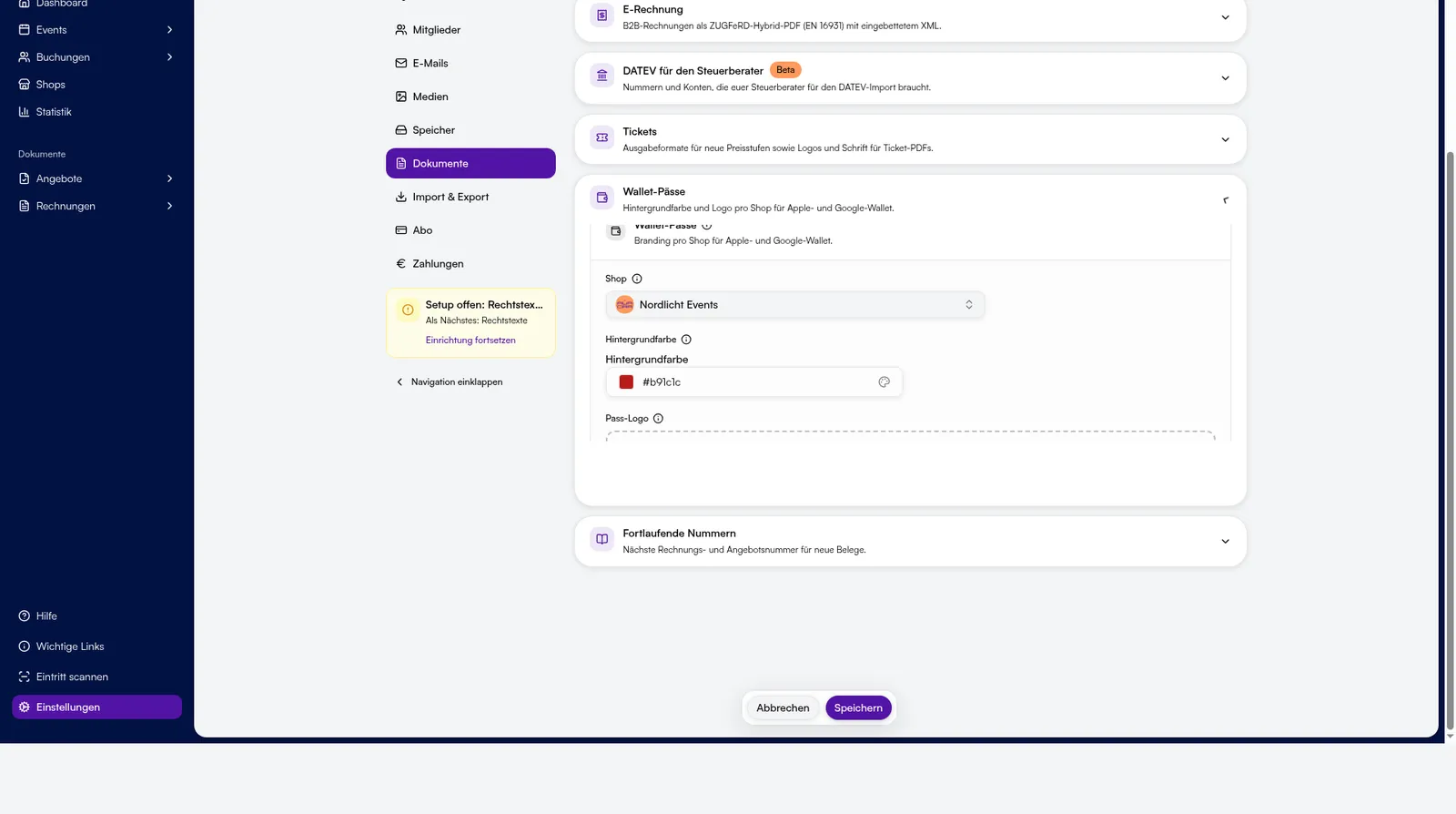
- Open Settings → Documents.
- Under wallet passes, set color and logo per shop.
Tips & FAQ
- No QR? E-ticket or PDF must be enabled on the pricing tier.
- Release: controls when QR and PDF become available to attendees.
- PDF delivery: depends on the event’s document notifications.
- List: all tickets also under Bookings → Tickets view.