
Event templates
Create and edit a template, create an event from it, or save an event as a template.
Event templates store the recurring configuration of an event so you do not have to set up similar events from scratch every time.
1. Create a template
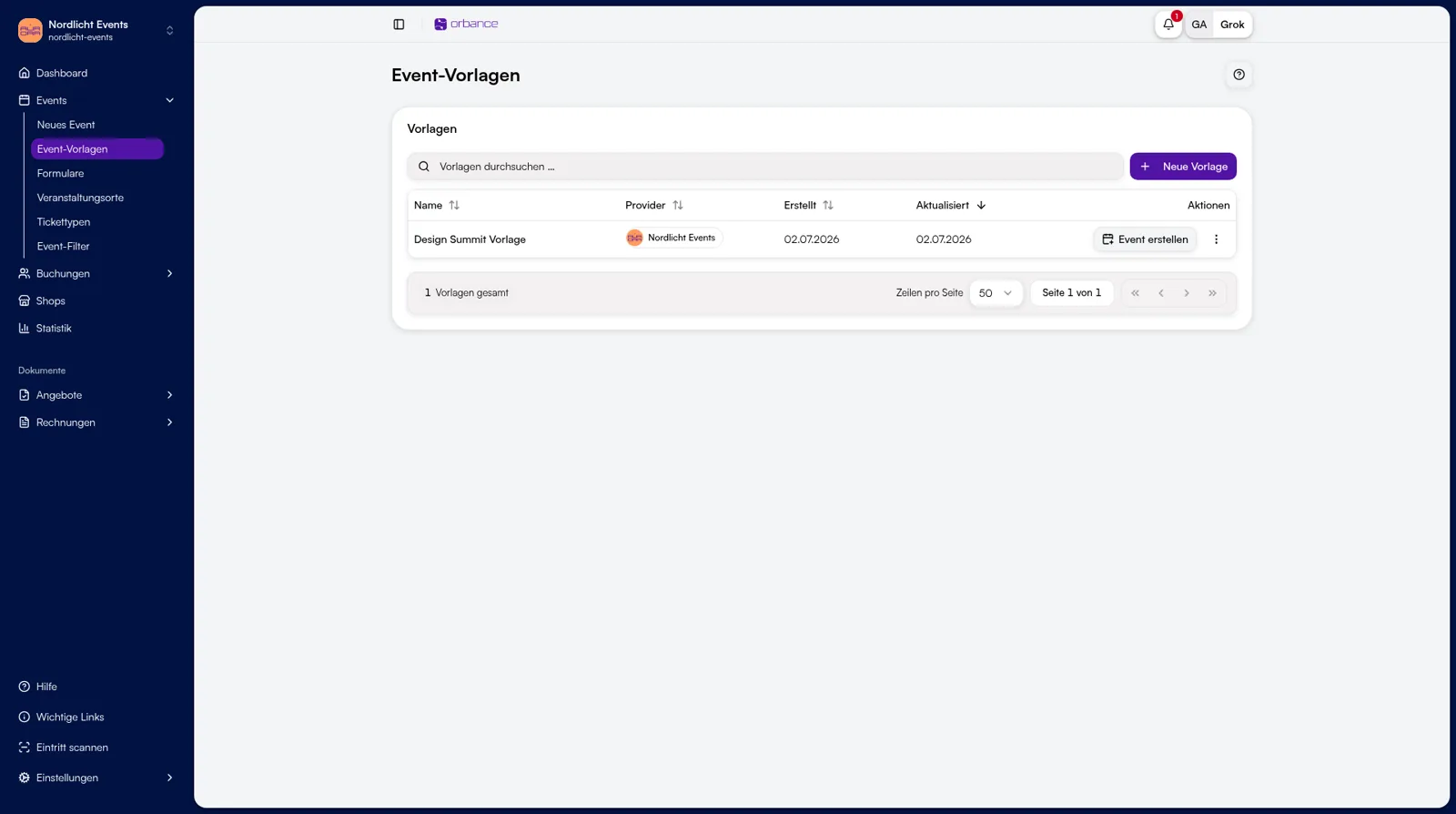
- Open Events → Event templates.
- Click New template (or Create first template if the list is empty).
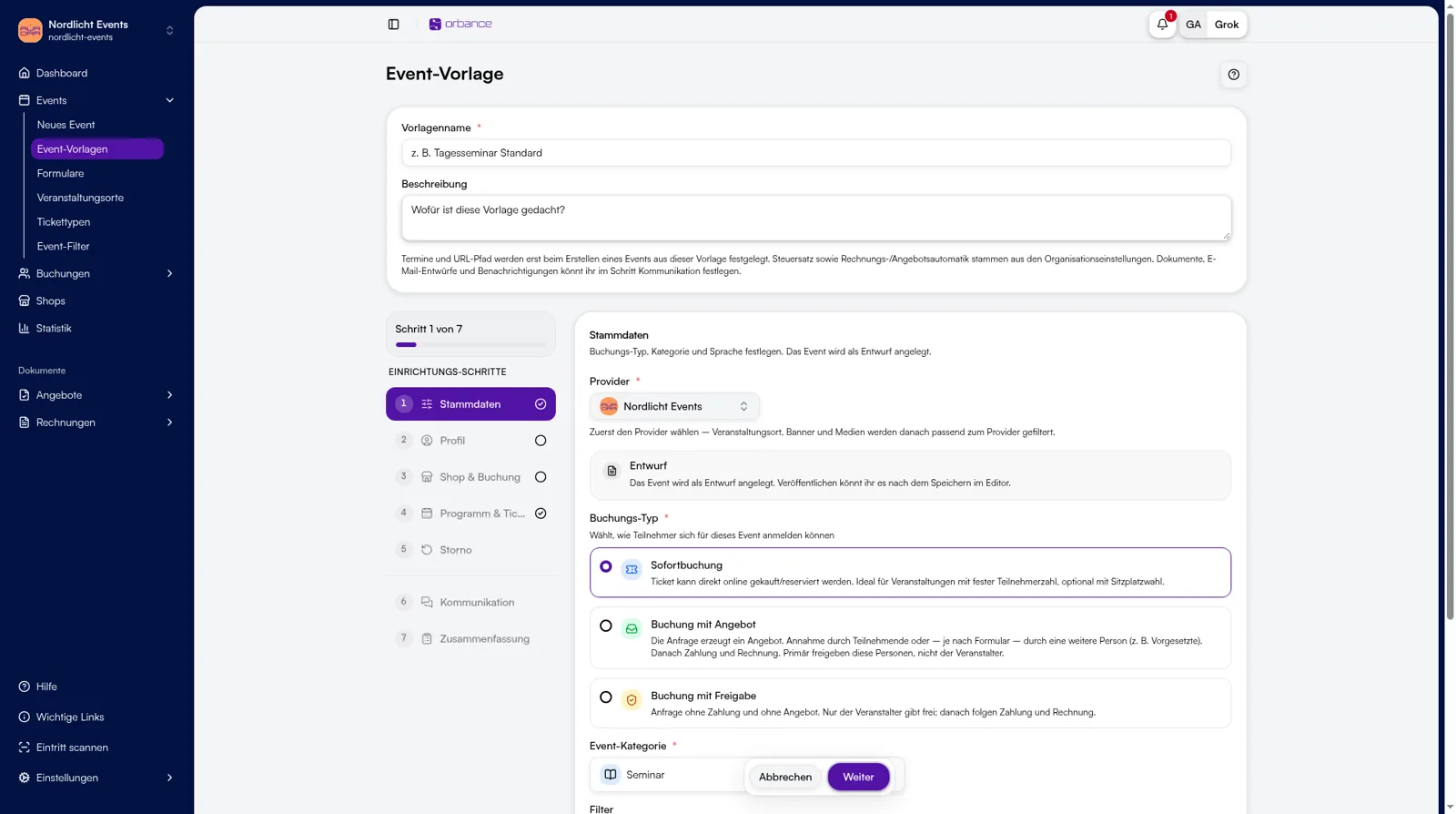
- Enter a Template name and optionally a Description.
- Configure the steps: Basics, Profile (without URL path), Shop & booking, Program & tickets (dates optional), Cancellation, and optionally Communication.
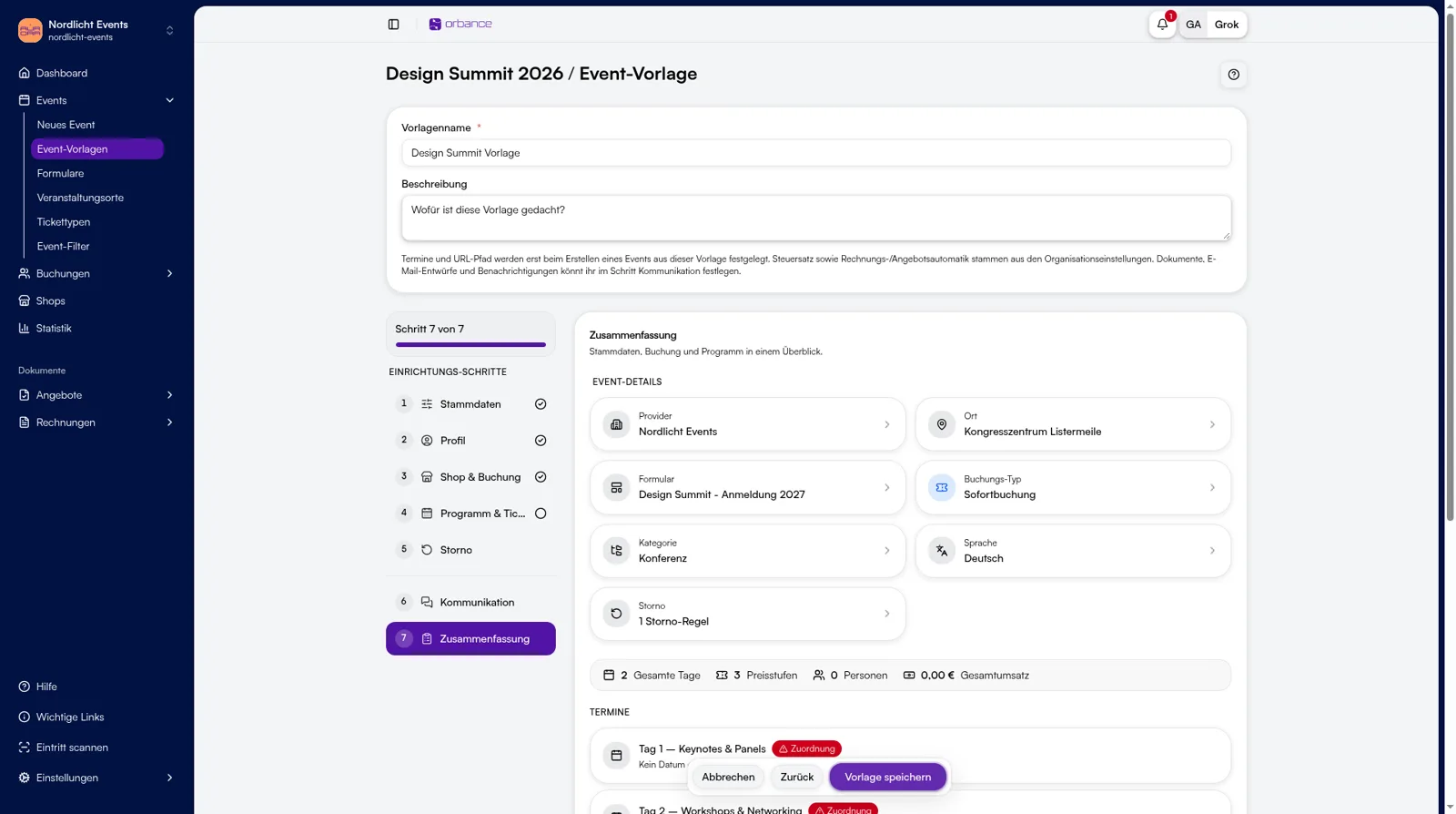
- Go to Summary (step 7) and save with Save template.
In the profile you can optionally set an event name. It is prefilled when you create a new event. The template name is only used in the list.
2. Edit a template
- In the list, click the name or choose Edit from the actions menu (⋮).
- Switch steps in the sidebar and make your changes.
- On Summary (last step), confirm with Save template.
From the actions menu you can also Rename, Duplicate, or Delete a template without opening the editor.
3. Create an event from a template
Two ways:
- From the templates list: Click Create event in the row – the wizard opens prefilled.
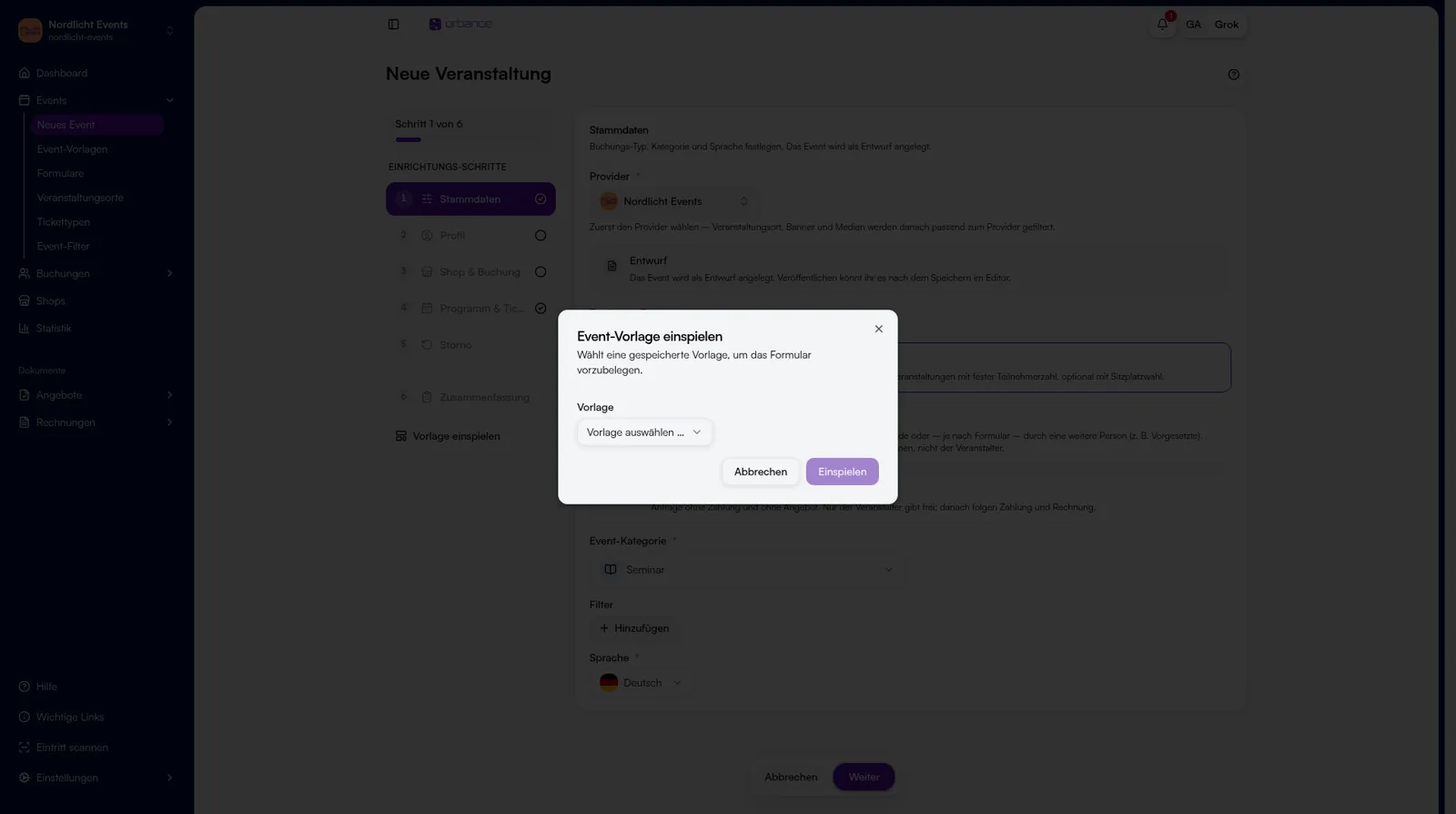
- In the new-event wizard: Under Events → New event, choose Apply template in the sidebar, select a template, and confirm with Apply. Existing fields in the wizard are overwritten.
The Title is prefilled if the template has an event name, otherwise you enter it on the event. The URL path and session dates (start/end) are always set on the event. Then create the event as a draft as usual.
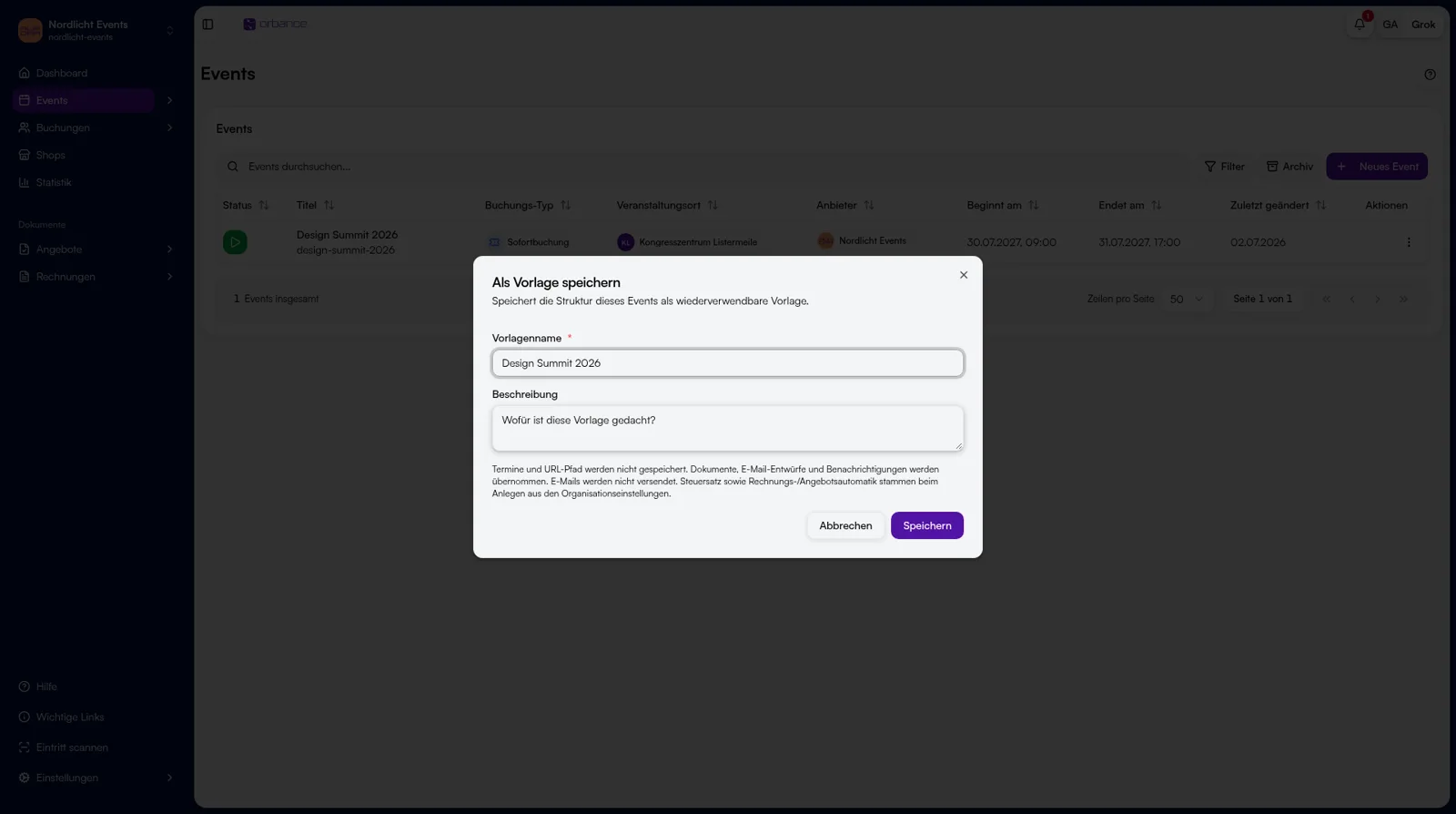
4. Save an event as a template
- Open an existing event or stay on the events list.
- Choose Save as template – in the event sidebar under Actions, or from the actions menu (⋮) on the events list.
- Check the Template name (prefilled with the event title), optionally add a Description, then confirm with Save.
Dates and URL path are not stored. Documents, email drafts, and notifications are included – emails are not sent.
Tips & FAQ
- What is in a template? Type, category, description, banner, provider, venue, form, booking options, program (without dates), pricing tiers (without tax rate), cancellation, and optionally communication.
- What is set on the event? The title is prefilled if the template has an event name, otherwise you enter it there. URL path, dates, and status are always set there; tax rate and invoice/offer automation come from organization settings.
- Duplicate names? Template names must be unique per organization and provider.
- After applying: Check that provider, venue, form, and ticket types still exist. Missing references are dropped silently.