
Back to help overview
Events
Create and edit events
Create a draft event, navigate the overview, edit sections, and publish.
Under Events → New Event you create an event as a draft. Open existing events from the event list or via Edit in the sidebar.
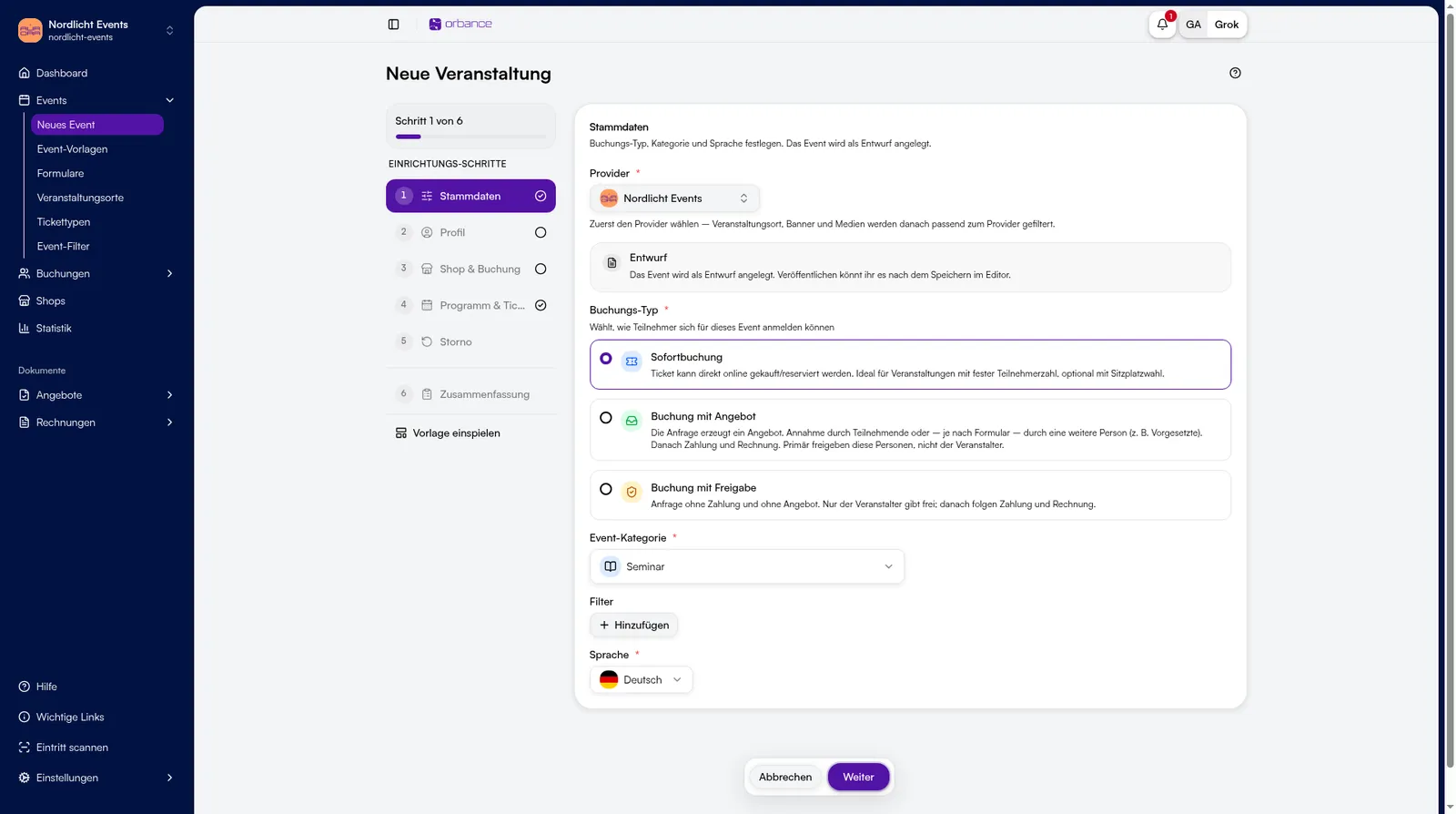
1. Create a new event
- Open Events → New Event.
- Walk through the steps: Basics, Profile, Shop & booking, Program & tickets, Cancellation.
- Optional: choose Apply template in the sidebar.
- On Summary, save with Create draft.
New events always start as drafts and are not visible to attendees yet.
2. Open and navigate an event
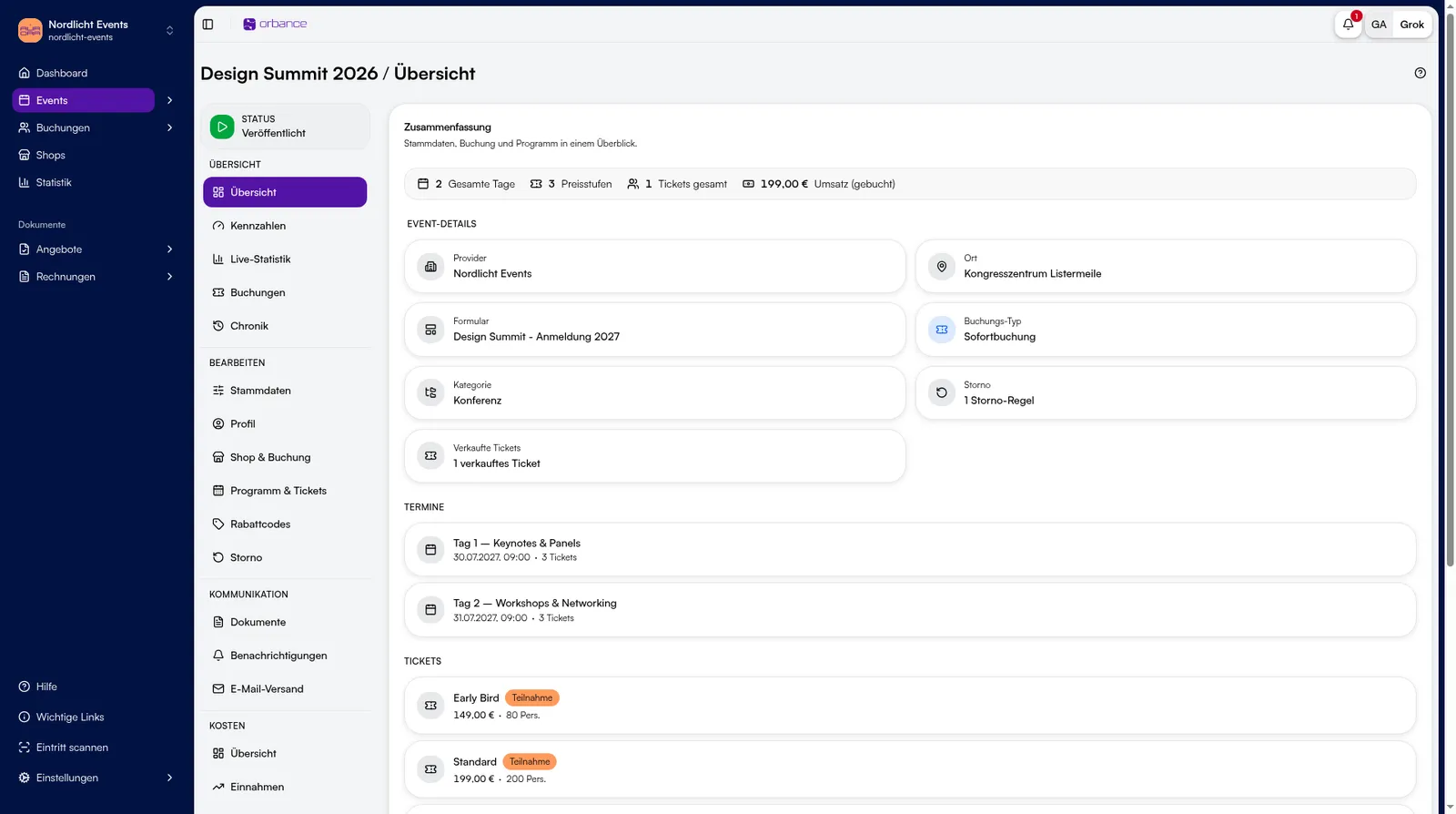
- In the event list, click the title or open it from the actions menu (⋮).
- In the sidebar switch between Overview, Edit, Communication, Costs, Links, and Actions.
3. Edit and publish
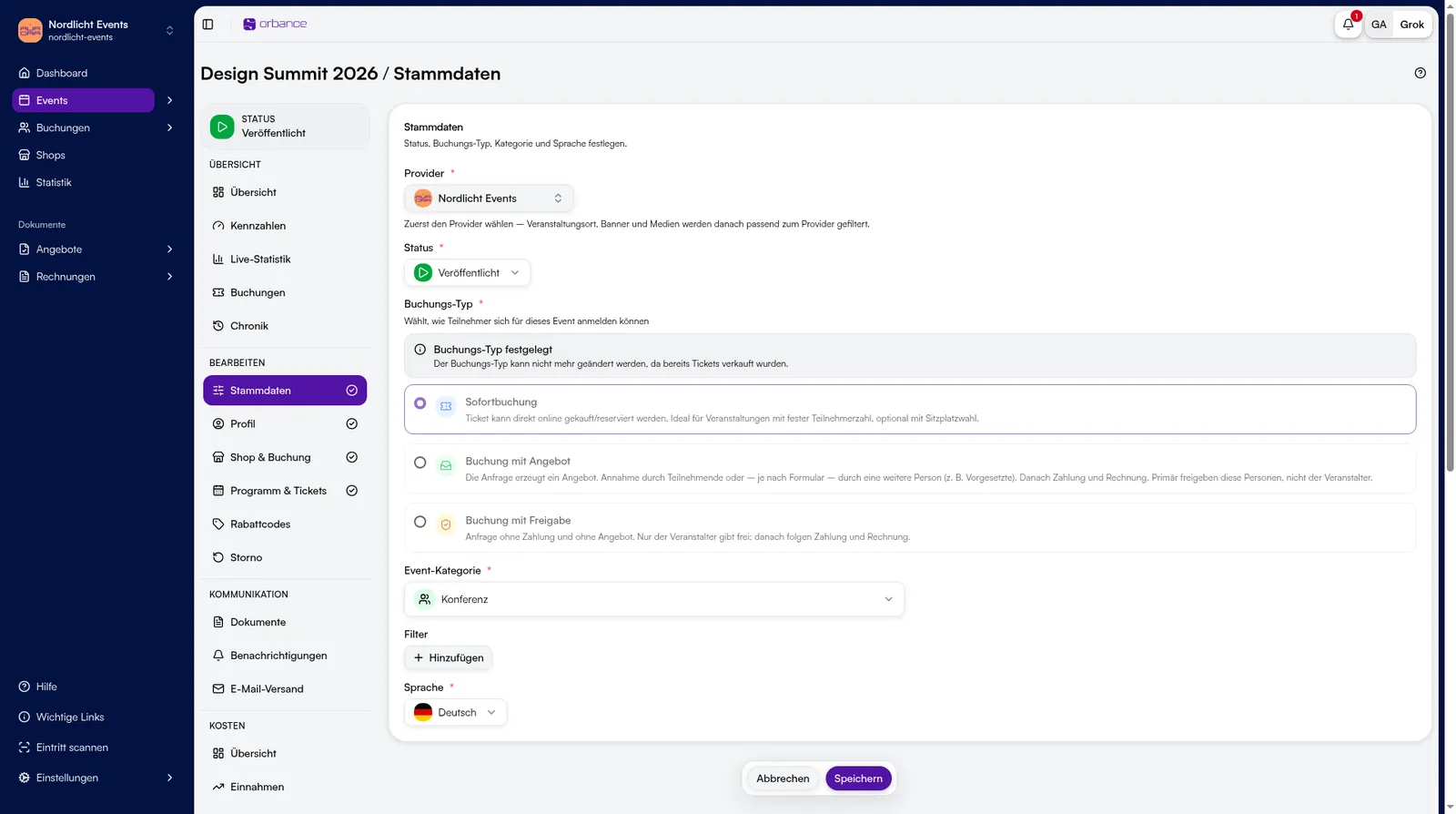
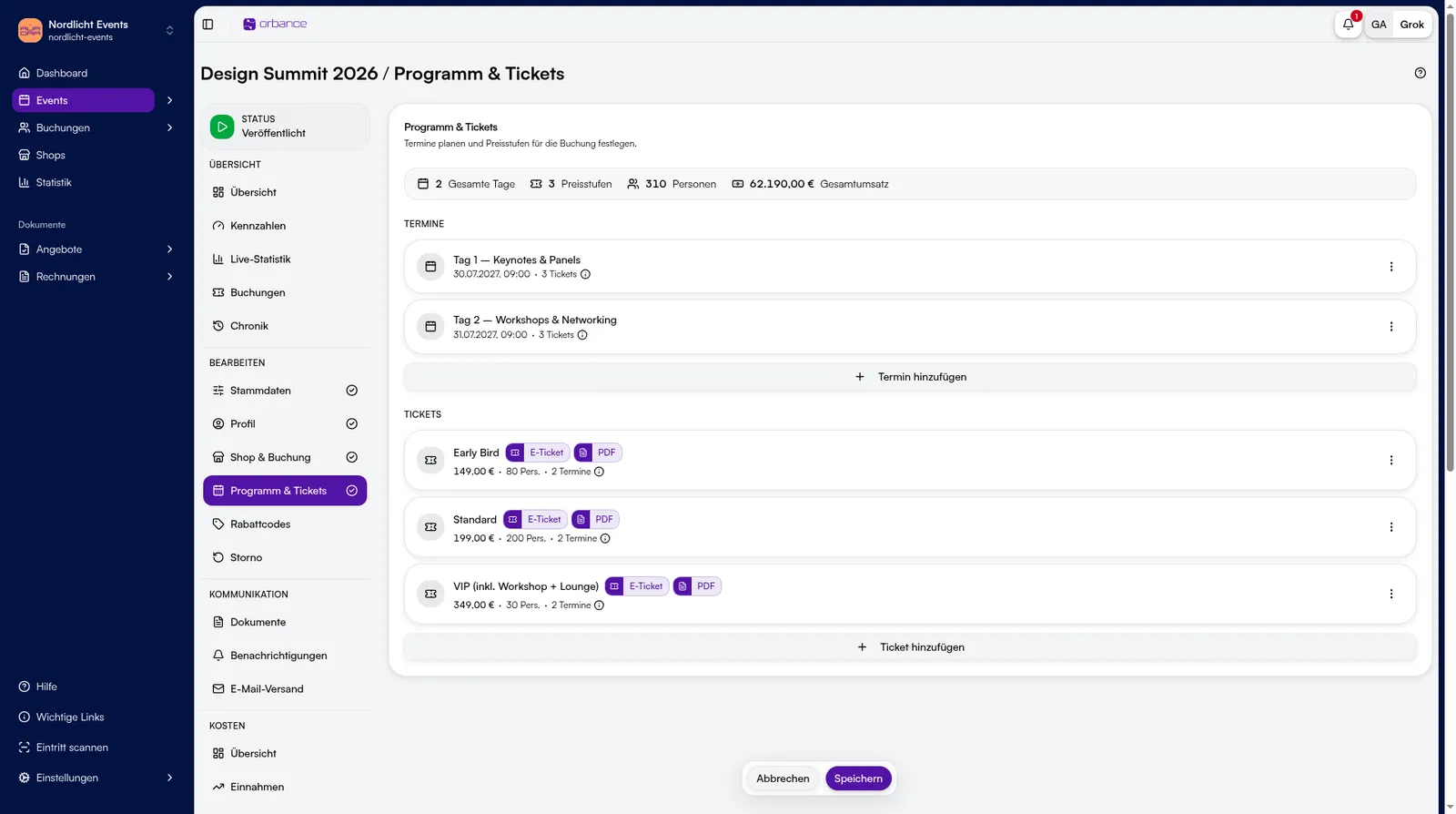
- Under Edit, open Basics, Profile, Shop & booking, Program & tickets, Promo codes, Cancellation.
- In Basics, set status from Draft to Published when ready.
- Save your changes in the editor.
Tips & FAQ
- Forms: live under Events → Form Templates and are assigned on the event under Shop & booking.
- Statistics: KPIs and live stats are on the event overview (not labeled “Analytics”).
- 0 € bookings: free bookings do not get an invoice.
- After sales: some fields (e.g. pricing tiers) are limited once tickets have been sold.