
Back to help overview
Buchungen
Manage bookings
Bookings and tickets list, details with payments and documents, filters and export.
Under Bookings you see all attendee bookings for the organization. Open a row for booking details with tickets, payments, and documents.
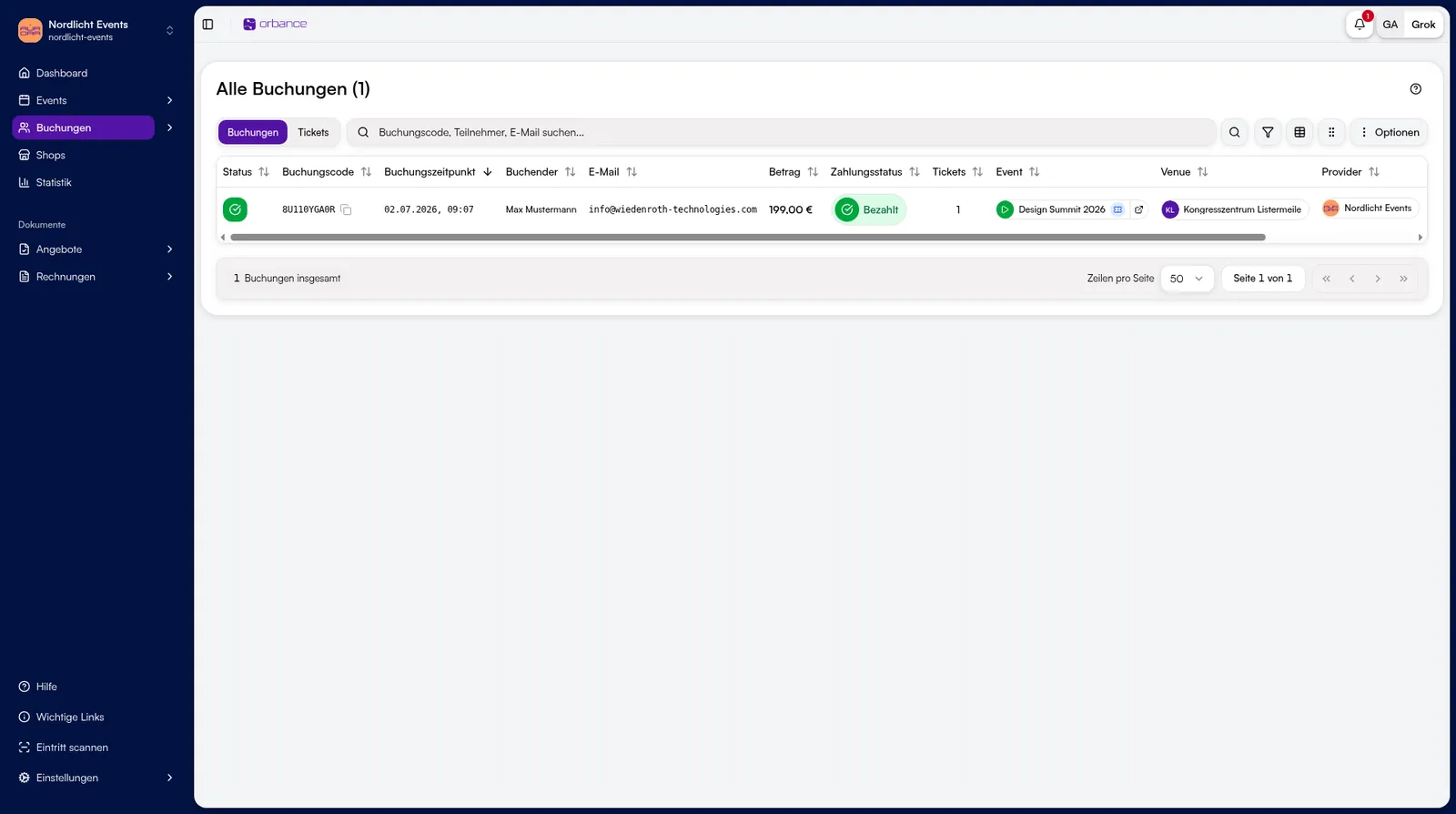
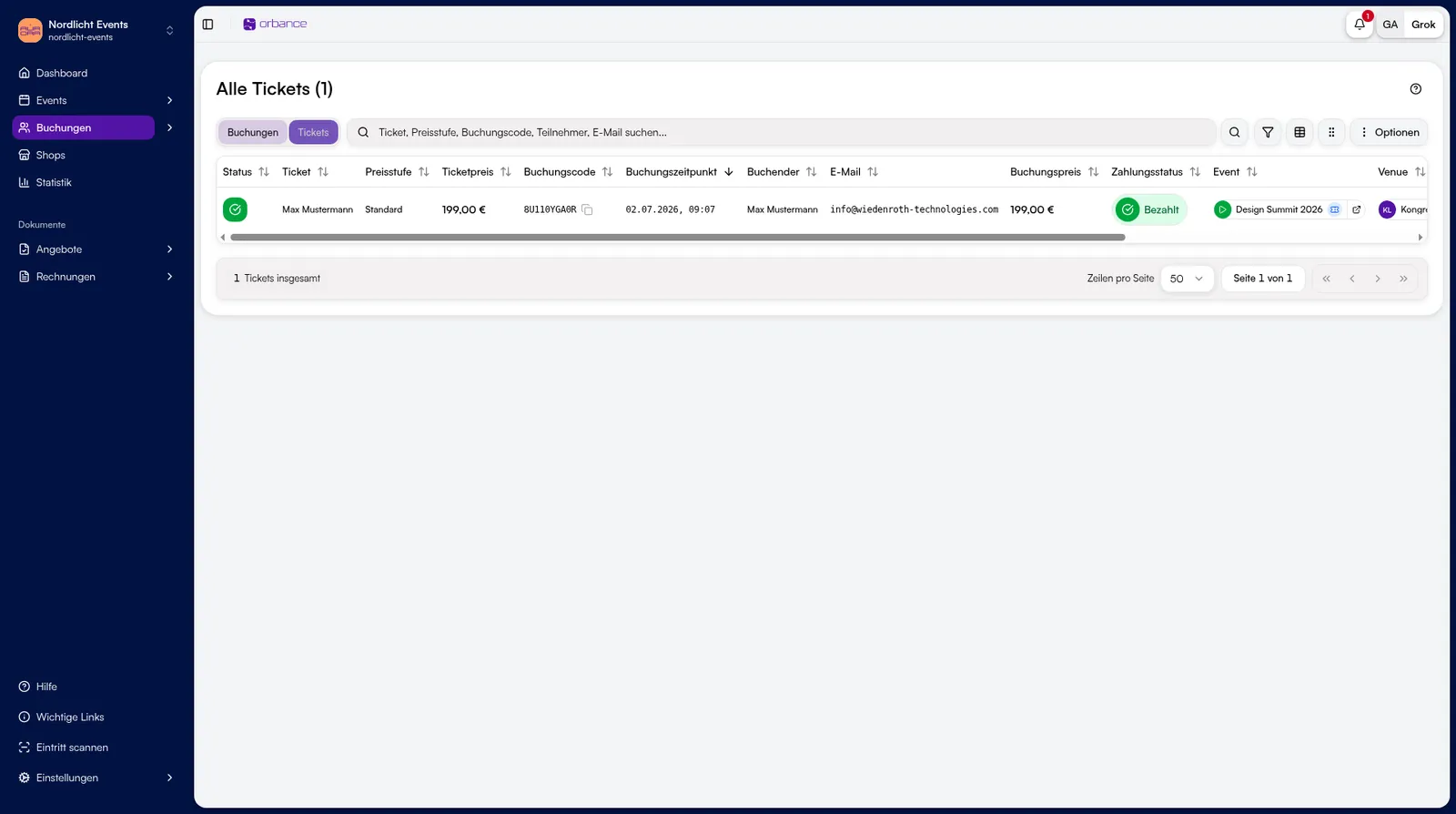
1. Open and filter the list
- Open Bookings in the sidebar.
- Switch between Bookings and Tickets at the top.
- Use search, Filter, and Options (columns, export, selection mode).
2. Booking details
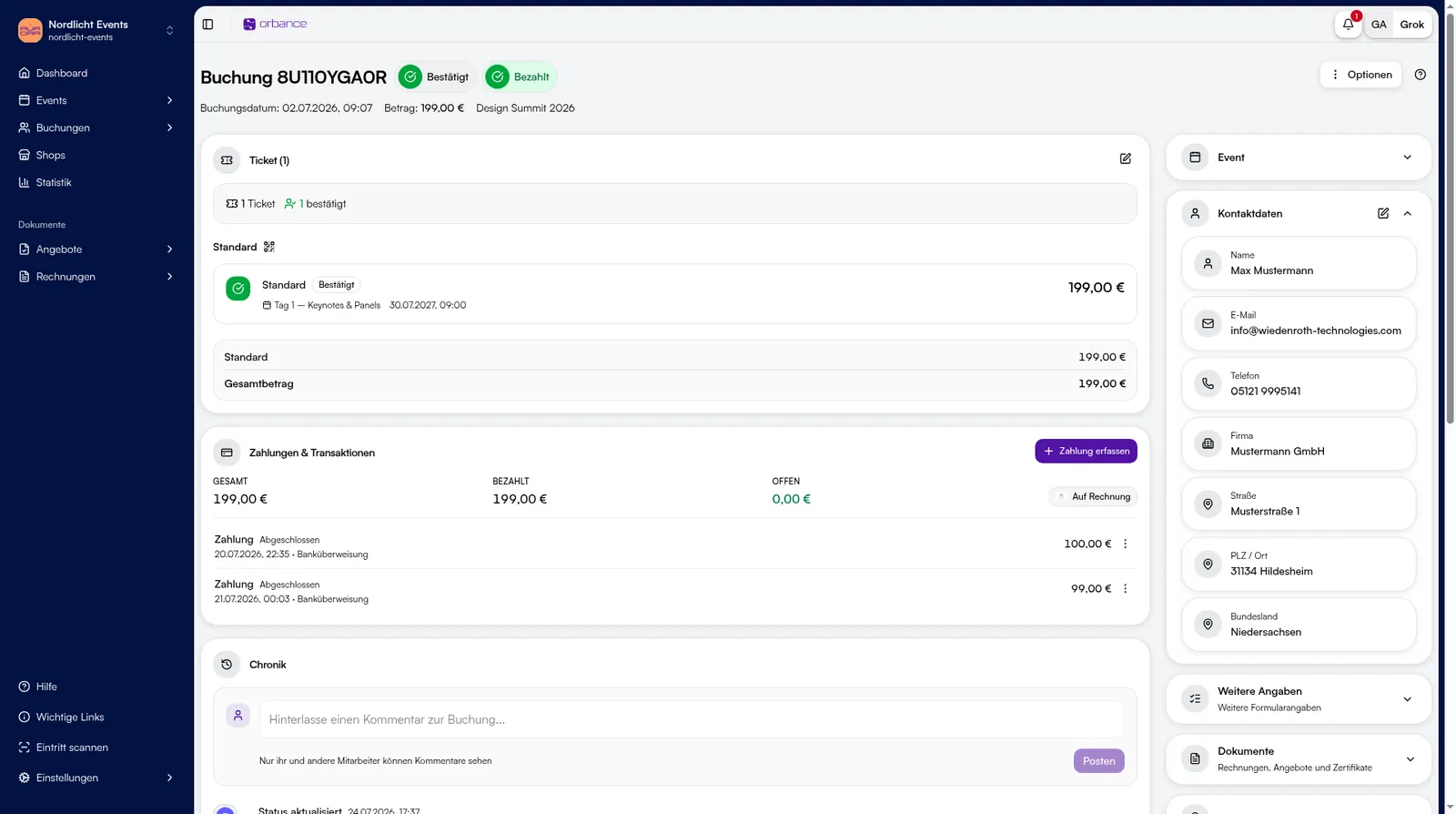
- Click a booking row.
- Under Options: change status, send email, resend tickets, open guest view, print, and more.
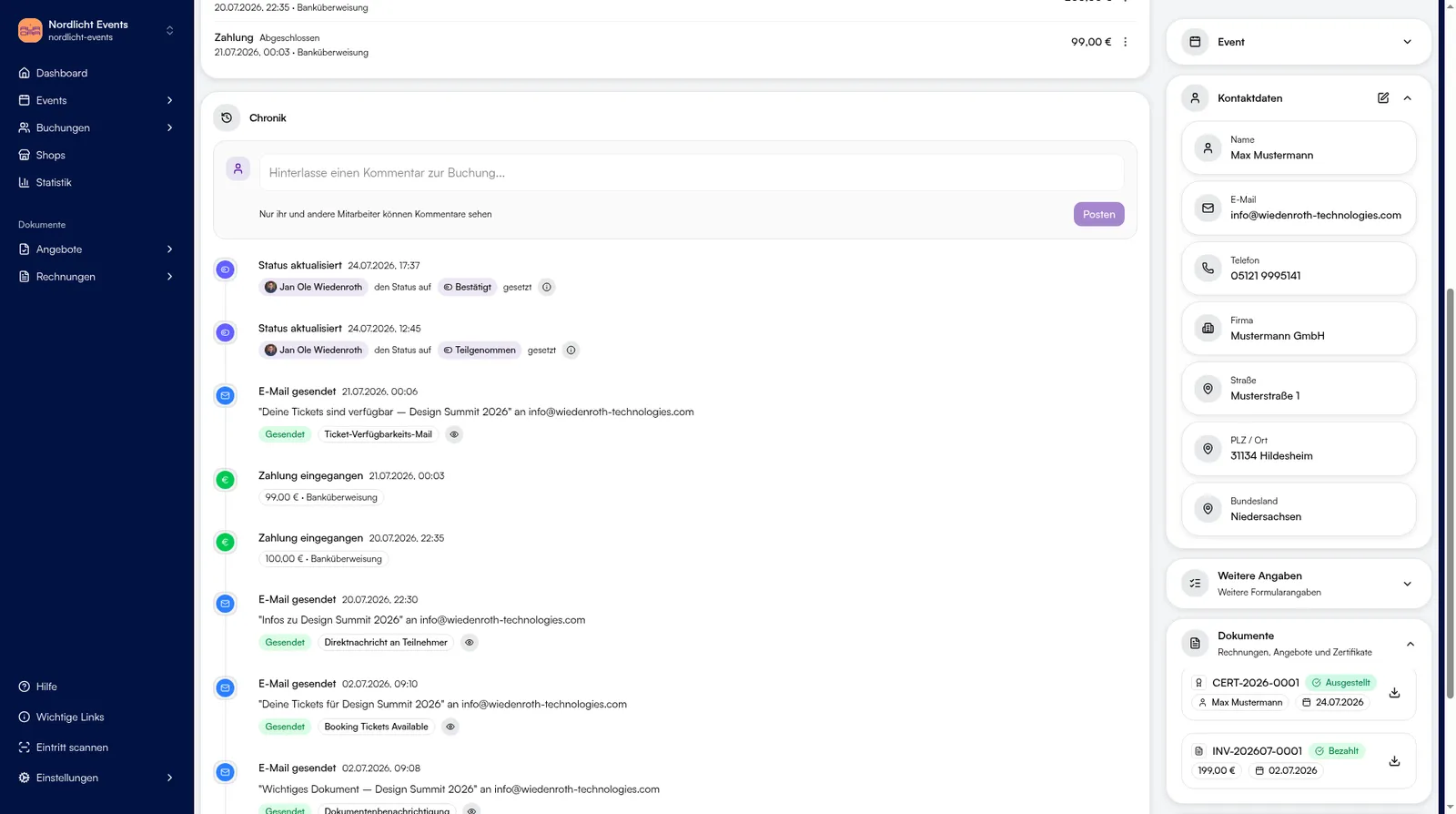
- Main column: Tickets, Payments & transactions, History.
- Sidebar: event, contact details, and Documents when present (invoices, offers, certificates).
Tips & FAQ
- Approvals: for approval-style events, open requests appear on the event overview.
- Cancel: cancel bookings one by one (not as a bulk action).
- 0 €: free bookings do not get an invoice.
- Manual booking: via Bookings → Add booking.